Process Hacker - Optimized Windows Debugging Client
4.41/5 (18 Reviews)
Process Hacker is a free powerful multi purpose tool that helps you monitor system resources.
System Utilities
System Optimization
Open Source
FREE DOWNLOAD (v2.39)
File Size: 2.2MB | Official Download
Key Features of Process Hacker
- Process Hacker is a premier open source utility designed for high performance system monitoring and advanced process management.
- It provides users with a remarkably robust environment to view detailed resource usage and terminate stubborn applications with absolute precision.
- The software features an integrated kernel driver that handles deep memory analysis and network connection tracking allowing for seamless debugging of complex software issues.
- In 2026 it remains a vital tool for developers needing a safe and verified environment for inspecting system handles and DLLs across diverse hardware configurations.
- Its support for real time graphing and a highly detailed tree view ensures that every diagnostic task is handled with incredible speed and professional grade accuracy.
- Process Hacker is the globally trusted choice for powerful and reliable system control across all modern Windows platforms.
How to monitor and terminate stubborn system processes
Process Hacker is a wildly powerful open-source alternative to the default Windows Task Manager. It solves the problem of locked files, hidden malware, and unkillable applications by giving you deep, kernel-level access to your system's resources. Follow these steps to take back control of your PC:
-
Launch as AdministratorTo unlock Process Hacker's full potential, you must right-click the application shortcut and select Run as Administrator. Without elevated privileges, you won't be able to view kernel-level activity or terminate protected system processes.
-
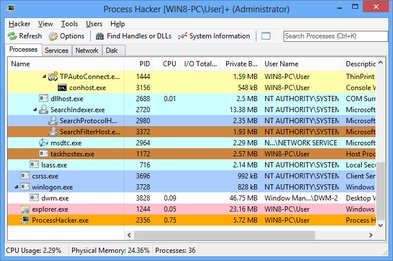
Analyze the Color-Coded Process TreeThe main Processes tab displays everything running on your computer in a hierarchical tree. Pay attention to the colors: by default, newly started processes highlight in green, terminated ones in red, and system services in blue. This makes it incredibly easy to spot suspicious background activity.
-
Terminate Unresponsive AppsIf an application is frozen and the standard Task Manager can't kill it, find it in the list, right-click the process, and select Terminate (or press Delete). Process Hacker uses advanced methods to force-close even the most stubborn programs.
-
Inspect Network ConnectionsSwitch to the Network tab to see exactly which applications are communicating with the internet. You can view remote IP addresses, ports, and real-time bandwidth usage to easily catch rogue software "phoning home."
Pro Tip: Can't delete a file or folder because Windows says "File is in use by another program"? Click Find Handles or DLLs in the toolbar, search for the file's name, and Process Hacker will tell you exactly which application is locking it so you can close it!
Frequently Asked Questions
This is a known false positive. Because Process Hacker utilizes a custom kernel-level driver (KProcessHacker) to bypass standard Windows security permissions and force-close protected processes, many antivirus engines categorize it as a "Potentially Unwanted Program (PUP)" or "HackTool." As long as you downloaded it from the official SourceForge or GitHub repository, it is completely safe.
Yes. You can set Process Hacker to launch whenever you press
Ctrl + Shift + Esc. Go to Options > Advanced and check the box that says Replace Task Manager. Note that this requires administrative privileges to modify your system registry.
Process Hacker version 2 is a legacy project that is no longer actively maintained. The original development team rebranded the software and launched version 3 under the name System Informer. For modern Windows 10 and Windows 11 compatibility, bug fixes, and dark mode support, it is highly recommended to upgrade to System Informer instead.
Yes, you must be careful. Process Hacker allows you to kill critical Windows system processes (like
csrss.exe or wininit.exe) that the standard Task Manager usually blocks you from touching. Terminating these will instantly cause a Blue Screen of Death (BSOD) and force your computer to restart. Always Google a process name if you aren't sure what it does before terminating it.
Technical Specifications
- Publisher: Processhacker.sourceforge.io
- License: Open Source
- Operating System: Windows 7, Windows 8, Windows 10, Windows 11
- Category: System Utilities / System Optimization
Process Hacker Screenshot