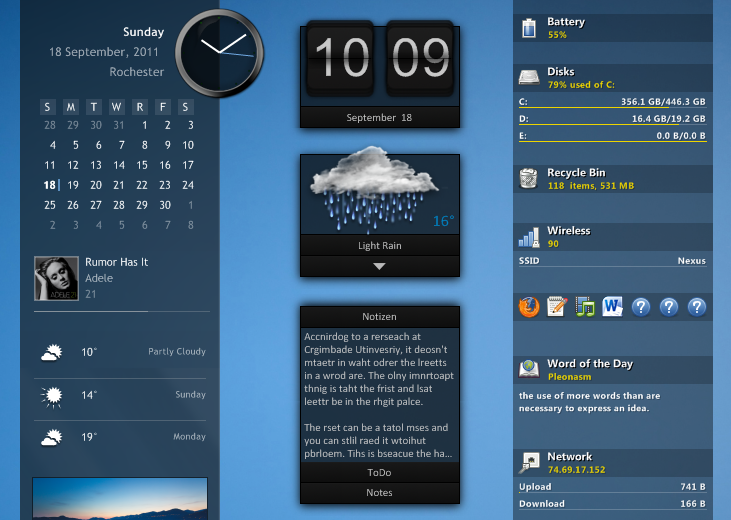
Rainmeter - 2026 Edition Desktop Utility
4.14/5 (17 Reviews)
Rainmeter allows you to display customizable skins on your desktop from hardware usage meters to audio visualizers.
System Utilities
System Optimization
Open Source
FREE DOWNLOAD (v4.5.18)
File Size: 2.4MB | Safe & Verified
Key Features of Rainmeter
- Rainmeter is a premier open source utility designed for high performance desktop customization and advanced hardware monitoring.
- It provides users with a remarkably robust environment to overlay real time system statistics weather forecasts and interactive app launchers onto their workspace with absolute precision.
- Its support for community created skins ensures that every aesthetic upgrade is handled with incredible speed and flexibility.
How to customize your Windows desktop with Rainmeter
Rainmeter transforms your desktop into a beautiful, data-rich hub. Follow these steps to install the software, find community themes, and configure your perfect setup:
-
Install and Load the Default SuiteDownload the final release from the official website and install it. Upon launching, Rainmeter will load its default starter suite called illustro. You can instantly click and drag these widgets around your desktop.
-
Download New SkinsThe true power of Rainmeter is the community. Visit sites like DeviantArt or the r/Rainmeter subreddit. Look for files ending in .rmskin. Double-click the downloaded file, and the Rainmeter Skin Installer will automatically add it to your library.
-
Manage Your DesktopRight-click the Rainmeter teardrop icon in your Windows system tray (bottom right corner) and select Manage. Here, you can browse your installed folders, select a skin's .ini file, and click Load or Unload to toggle it on your screen.
-
Tweak Variables and SettingsRight-click any widget on your screen and click Edit skin. This opens a text document where you can change the underlying code. Look for a section called
[Variables]at the top to easily change colors, fonts, or resizing scales, then save the file and refresh the skin!
Pro Tip: Once you have your widgets positioned exactly where you want them, right-click the skin, go to Settings, and uncheck Draggable. This prevents you from accidentally moving your carefully aligned setup while clicking around your desktop!
Frequently Asked Questions
Generally, no. Rainmeter itself is incredibly lightweight and uses very few system resources. However, if you load dozens of highly animated skins or complex audio visualizers, it can cause CPU spikes. For competitive gaming, you can configure Rainmeter's "Game Mode" to pause all animations while full-screen applications are running.
Weather skins require location data to fetch forecasts. You usually need to right-click the widget, select Edit skin, and find the variable for the location code (often requiring a zip code or coordinates from weather.com). Additionally, weather APIs change frequently, so older skins may break and require an update from the creator.
No. Rainmeter is strictly a desktop overlay tool. It draws widgets on top of your wallpaper but does not modify core Windows UI elements like the Start Menu, Taskbar, or File Explorer. If you want a transparent taskbar, you will need a complementary tool like TranslucentTB.
Rainmeter can read basic system data (like RAM usage), but it cannot directly read advanced hardware temperatures out of the box. Most hardware monitor skins require you to install and run background utilities like CoreTemp, SpeedFan, or HWiNFO so the skin can pull the temperature data from them.
Technical Specifications
- Publisher: Rainmeter.net
- License: Open Source
- Operating System: Windows 7, Windows 8, Windows 10, Windows 11
- Category: System Utilities / System Optimization
Rainmeter Screenshot