WinSCP - High Speed FTP Server File Manager
4.30/5 (21 Reviews)
WinSCP is a popular free SFTP and FTP client for Windows a powerful file manager that will improve your productivity.
Internet And Network
Networking And Server
Open Source
FREE DOWNLOAD (v6.3.3)
File Size: 11.2MB | Safe & Verified
Key Features of WinSCP
- WinSCP is a premier open source utility designed for high performance remote file transfer and advanced server management.
- It provides users with a remarkably robust dual pane environment to manage SFTP FTP and WebDAV connections with absolute precision.
- Its support for integrated text editing and automated scripting ensures that every server maintenance task is handled with incredible speed and professional grade security.
How to securely transfer files using WinSCP
WinSCP is the industry standard for safe, remote file management on Windows. Follow these steps to connect to your server and start transferring files:
-
Create a New SessionLaunch WinSCP and the Login dialog will appear. Select your File Protocol (SFTP is highly recommended for security). Enter your server's Host name (IP address or domain), your username, and your password.
-
Save Your CredentialsBefore clicking Login, click the Save button. Give your session a recognizable name so you can easily double-click it in the future without having to type your IP address and username every single time.
-
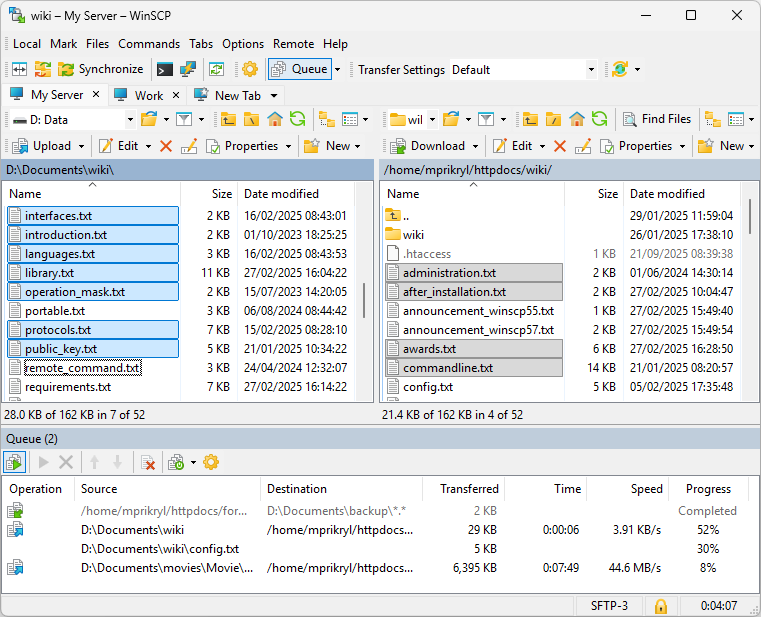
Navigate the Commander InterfaceOnce connected, WinSCP typically uses a dual-pane view. The left panel shows the local files on your PC, and the right panel shows the files on your remote server. You can double-click folders on either side to navigate through the directories.
-
Drag, Drop, and EditTo transfer files, simply drag them from the left panel and drop them into the right panel (or vice versa). To make quick code changes, right-click a file on the server and select Edit to open it in WinSCP's built-in text editor.
Pro Tip: For maximum security, ditch passwords entirely! In the Login dialog, click Advanced > SSH > Authentication and load a Private Key file (.ppk). This allows you to authenticate securely using cryptographic keys instead of a typed password.
Frequently Asked Questions
Yes. WinSCP is free and open-source software distributed under the GNU General Public License (GPL). You can use it in enterprise, corporate, or commercial environments at absolutely no cost.
This usually means you are trying to connect on a port that the server isn't listening to, or a firewall is blocking you. Check your protocol dropdown: if your server only supports secure SFTP (Port 22), trying to connect via standard FTP (Port 21) will result in a connection refused error.
If this is your first time connecting to a specific server, this message is completely normal—WinSCP is simply asking you to trust the server's cryptographic identity. However, if you've connected to this server before and suddenly see this warning, it could mean the server's OS was reinstalled, or in rare cases, someone is attempting a Man-in-the-Middle (MITM) attack.
Yes. WinSCP features a powerful command-line interface and supports scripting (using batch files, PowerShell, or .NET assemblies). You can write a script to synchronize local and remote directories and trigger it daily using the Windows Task Scheduler.
Technical Specifications
- Publisher: Winscp.net
- License: Open Source
- Operating System: Windows 7, Windows 8, Windows 10, Windows 11
- Category: Internet And Network / Networking And Server
WinSCP Screenshot