VS Code - High Speed Coding Editor Manager
4.85/5 (19 Reviews)
Visual Studio Code is a lightweight but powerful source code editor which runs on your desktop.
Development And IT
Coding Utilities
Freeware
FREE DOWNLOAD (v1.87.2)
File Size: 94.5MB | Official Download
Key Features of Visual Studio Code
- Visual Studio Code is a premier freeware utility designed for high performance text editing and advanced software development.
- It provides users with a remarkably robust environment to write code edit configuration files and view massive text documents with absolute precision.
- Its support for thousands of extensions ensures that every programming task is handled with incredible speed and professional grade accuracy.
How to set up your first workspace in Visual Studio Code
Visual Studio Code is a highly customizable, folder-based code editor. Whether you are building a website or writing a Python script, follow these steps to optimize your development environment:
-
Install the Editor and Language RuntimesDownload VS Code for Windows, Mac, or Linux. Important: VS Code is just a text editor! If you plan to write code in languages like Python, Java, or C++, ensure you have downloaded and installed those specific compilers/interpreters on your computer first.
-
Open a Project FolderUnlike basic text editors, VS Code works best with directories. Go to File > Open Folder and select the main folder where your project files will live. This opens a "Workspace," allowing you to see all your files in the left-hand Explorer panel.
-
Download Essential ExtensionsClick the Extensions icon on the far-left sidebar (it looks like four building blocks). Search for the programming language you are using (e.g., "Python" or "Prettier - Code formatter") and click Install. This gives the editor the ability to understand, color-code, and auto-complete your specific syntax.
-
Use the Integrated TerminalGo to Terminal > New Terminal in the top menu. A command-line interface will open at the bottom of your screen, automatically set to your current project folder. You can use this to run your code, install packages via pip/npm, or push updates to GitHub.
Pro Tip: Memorize the Command Palette hotkey:
Ctrl + Shift + P (or Cmd + Shift + P on Mac). This opens a magic search bar at the top of your screen where you can type any command, change settings, or format your code without digging through menus!
Frequently Asked Questions
They are completely different applications. Visual Studio is a massive, heavy-duty Integrated Development Environment (IDE) primarily used for Windows, C++, and .NET development. Visual Studio Code (VS Code) is a lightweight, cross-platform text editor that uses extensions to handle almost any programming language.
Yes. VS Code is free for private, educational, and commercial use. The core of the software is built on an open-source project (Code - OSS), though the official Microsoft download includes some proprietary features and telemetry.
By default, VS Code just edits text; it doesn't execute it. To run your code, you must ensure that the runtime for your language (like Node.js for JavaScript or Python for Python) is installed on your computer. Then, install the official extension for your language in VS Code, which will add a "Run" button to the top right of your editor.
This means VS Code is not in your system's PATH. If you are on a Mac, open VS Code, press
Cmd + Shift + P to open the Command Palette, type Shell Command: Install 'code' command in PATH, and hit Enter. On Windows, you may need to reinstall the software and ensure the "Add to PATH" checkbox is ticked during the installation wizard.
Technical Specifications
- Publisher: Code.visualstudio.com
- License: Freeware
- Operating System: Windows 7, Windows 8, Windows 10, Windows 11
- Category: Development And IT / Coding Utilities
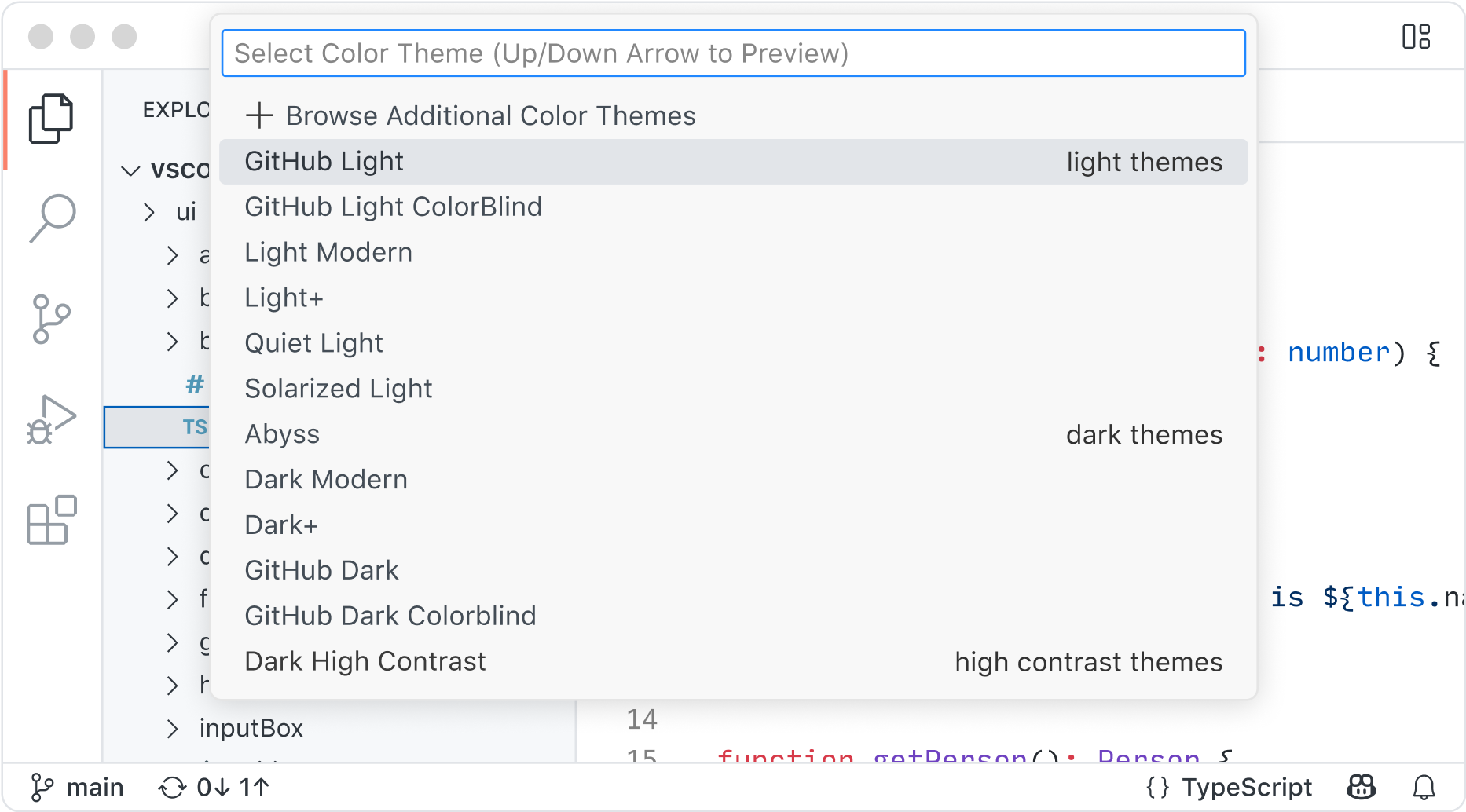
Visual Studio Code Screenshot