Veeam Agent Professional Secure Data Recovery Utility
4.07/5 (28 Reviews)
Veeam Agent for Microsoft Windows is a simple solution for backing up Windows based desktops and laptops.
System Utilities
File Management
Freeware
FREE DOWNLOAD (v13.0.2.1102)
File Size: 176.3MB | Safe & Verified
Key Features of Veeam Agent for Microsoft Windows
- Veeam Agent for Microsoft Windows is a premier system utility designed for high performance data protection and advanced endpoint backup management.
- It provides users with a robust environment to create image based backups for entire computers individual volumes or specific folders ensuring that critical data is always protected from hardware failure or cyber threats.
- The software features built in integration with cloud repositories and network attached storage allowing for flexible recovery options including bare metal restores and instant virtual machine recovery.
- In 2026 it remains a vital tool for IT professionals and home users needing a safe and verified environment for disaster recovery without complex infrastructure requirements.
- Its support for changed block tracking and immutable storage ensures that every backup session is handled with absolute precision.
- Veeam Agent is the globally trusted choice for efficient and reliable Windows backup across all modern desktop platforms.
How to Back Up and Restore Your PC with Veeam Agent Free
Veeam Agent for Microsoft Windows Free is a powerful tool to protect your laptop or desktop from hardware crashes, ransomware, and accidental deletion. Follow these steps to configure your first automated backup:
-
Build Your Bootable Recovery MediaBefore creating a backup, insert a blank USB flash drive and select Create Recovery Media from the Veeam menu. This is your emergency lifeline—it allows you to boot your PC and restore everything even if Windows refuses to load.
-
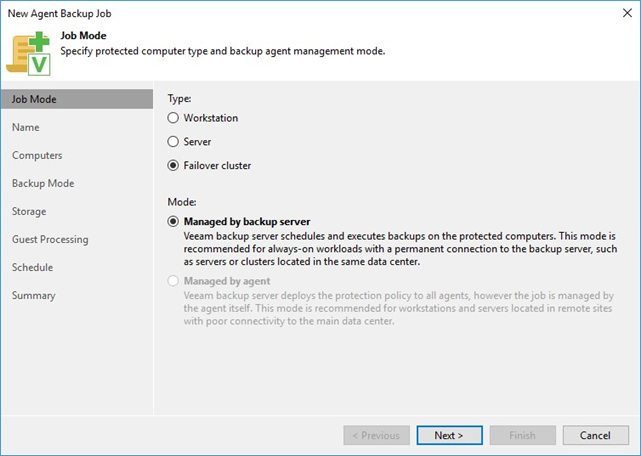
Configure Your Backup JobOpen the Veeam control panel and click Configure Backup. Choose "Entire computer" for a complete system image (recommended), or "Volume-level backup" if you only want to protect specific drives, like your C: drive.
-
Choose a Safe DestinationSelect Local Storage to save your backup to an external USB hard drive, or choose Shared Folder to point it to a Network Attached Storage (NAS) device. Avoid saving the backup on the same drive you are trying to protect!
-
Recover Files or the Full SystemNeed a single file? Right-click the Veeam tray icon and choose Restore > Individual Files to browse your backup like a normal folder. Had a total drive failure? Boot from your USB Recovery Media and select Bare Metal Recovery to overwrite the new drive with your exact previous system state.
Pro Tip: When setting up your daily backup schedule, check the box that says "Wake up computer from sleep." This ensures your PC backs up seamlessly overnight without you needing to leave the screen on.
Frequently Asked Questions
Yes. Veeam supports Bare Metal Recovery. If you buy a new PC or replace your motherboard, you can boot from the Veeam Recovery Media USB and inject your entire backup onto the new hardware. Veeam will automatically adjust the drivers so Windows boots properly.
This is a common Windows error. Veeam uses the Microsoft Volume Shadow Copy Service (VSS) to take a snapshot of your files while they are in use. If VSS fails, it usually means your hard drive doesn't have enough free space to create the temporary snapshot, or the VSS service in Windows needs to be restarted via the Services menu (services.msc).
Not directly. The free version is designed to back up to local external hard drives or network-attached storage (NAS). However, a common workaround is to have Veeam back up to a local folder that is actively synced to your cloud storage provider via their desktop app.
Yes. Because Veeam needs low-level access to your hard drives to copy locked system files and operating system configurations, it must be installed and run using an account with local Administrator privileges.
Technical Specifications
- Publisher: Veeam.com
- License: Freeware
- Operating System: Windows 7, Windows 8, Windows 10, Windows 11
- Category: System Utilities / File Management
Veeam Agent for Microsoft Windows Screenshot