ShareX - Open Source PC Productivity Utility
4.54/5 (23 Reviews)
ShareX is a free and open source program that lets you capture or record any area of your screen.
Multimedia And Design
Video And DVD
Open Source
FREE DOWNLOAD (v19.0.2)
File Size: 108.25MB | Safe & Verified
Key Features of ShareX
- ShareX is a premier open source utility designed for high performance screen capture and advanced productivity management.
- It provides users with a remarkably robust environment to record scrolling windows capture GIFs and automatically upload images to various hosting destinations with absolute precision.
- The software features an integrated image editor and OCR text recognition allowing for immediate annotation and data extraction from visual content.
- In 2026 it remains a vital tool for power users and developers needing a safe and verified environment for visual communication and rapid workflow automation across diverse platforms.
- Its support for over eighty different upload destinations and custom script execution ensures that every capture task is handled with incredible speed and professional grade accuracy.
- ShareX is the globally trusted choice for powerful and reliable desktop capture across all modern Windows environments.
How to automate your screenshots with ShareX
ShareX is a ridiculously powerful screen capture tool that can automate your workflow. Before you start snapping pictures, follow these steps to configure it safely and efficiently:
-
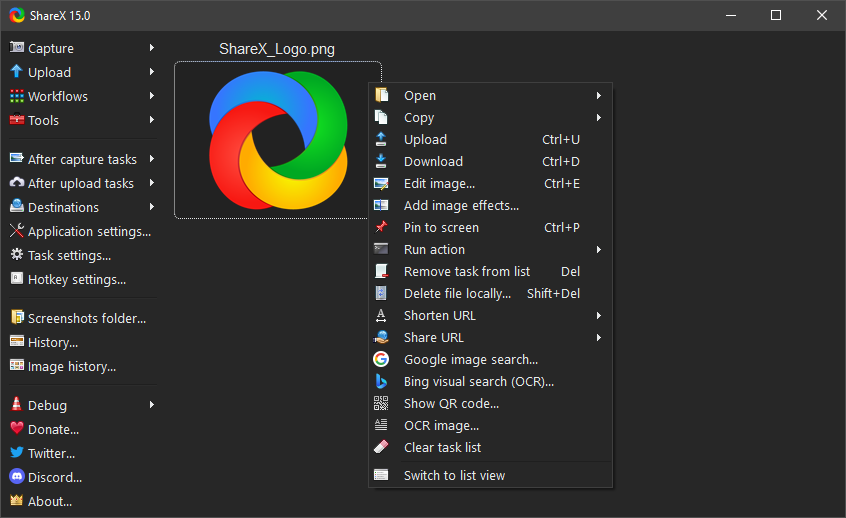
Download and Manage HotkeysInstall ShareX from the official site or Steam. Upon launching, click on Hotkey settings on the left sidebar. Here, you can remap your default capture keys (like overriding the default Print Screen button) to trigger a ShareX Region Capture instead.
-
Configure Your "After Capture" TasksThis is the most important step! Click on After capture tasks in the main menu. Here, bolded items are active. If you handle sensitive data, click Upload image to host to turn it off (unbold it). Ensure Save image to file and Copy image to clipboard are bolded.
-
Take a Region CapturePress your configured hotkey (usually
Ctrl + Print Screen). Your screen will freeze, and a crosshair will appear. Click and drag to select the exact area of the screen you want to capture. Thanks to your workflow settings, it is now instantly saved and on your clipboard! -
Use the Built-in Image EditorIf you need to point something out before sharing, enable Open in image editor in your "After capture tasks." Now, every time you take a screenshot, the ShareX editor will pop up, allowing you to add arrows, text boxes, step-by-step numbered bubbles, or blur out private information.
Pro Tip: ShareX has an amazing built-in OCR (Optical Character Recognition) tool. Right-click the ShareX tray icon, go to Tools -> OCR, and select an area of your screen. It will instantly read any text inside an image or video and copy it to your clipboard as plain, editable text!
Frequently Asked Questions
Yes. ShareX is completely free, open-source, and devoid of advertisements. With over a decade of active development, it is widely trusted by professionals and developers around the world.
By default, ShareX is configured to upload captures to Imgur to make sharing easy. To stop this, open the main ShareX window, click on After capture tasks on the left side, and click on Upload image to host so that the text is no longer bolded.
Yes. You can record your screen by selecting Capture -> Screen recording or Screen recording (GIF). The first time you do this, ShareX will ask for permission to automatically download
FFmpeg, a small background file required to encode the video. Once downloaded, you can record without limits.
No. ShareX is a Windows-exclusive application and relies heavily on Windows APIs to function. Mac users seeking a similar workflow-based capture tool usually turn to alternatives like CleanShot X or Lightshot.
Technical Specifications
- Publisher: Getsharex.com
- License: Open Source
- Operating System: Windows 7, Windows 8, Windows 10, Windows 11
- Category: Multimedia And Design / Video And DVD
ShareX Screenshot