Autoruns - Feature Rich Startup Optimizer
4.10/5 (19 Reviews)
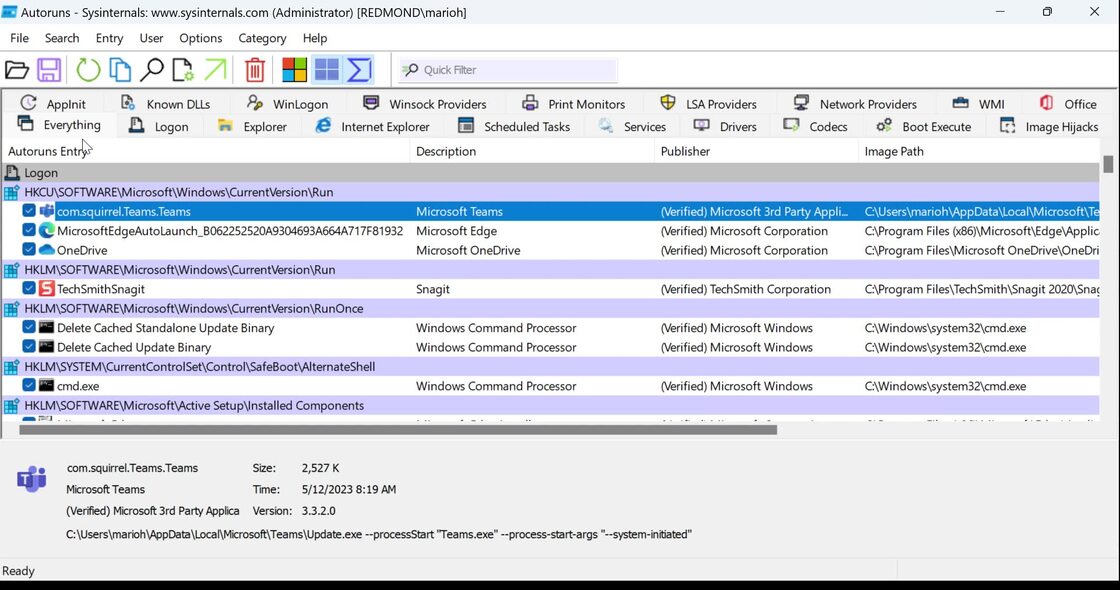
Autoruns shows you what programs are configured to run during system bootup or login.
System Utilities
System Optimization
Freeware
FREE DOWNLOAD (v14.11)
File Size: 3.4MB | Official Download
Key Features of Autoruns
- Autoruns is a premier freeware utility designed for high performance startup management and advanced system boot optimization.
- It provides users with a remarkably robust environment to see exactly which applications and services launch during Windows initialization with absolute precision.
- The software features an integrated verification engine that handles digital signatures and malware checks for every startup entry allowing for seamless removal of unwanted processes.
- In 2026 it remains a vital tool for security researchers needing a safe and verified environment for detecting persistence mechanisms across diverse hardware configurations.
- Its support for detailed filter views and lightweight execution ensures that every optimization task is handled with incredible speed and professional grade accuracy.
- Autoruns is the globally trusted choice for powerful and reliable boot management across all modern Windows platforms.
How to track down hidden malware and stubborn startup programs
Autoruns is an incredibly powerful, free Sysinternals utility provided by Microsoft. It solves the biggest problem for IT pros fighting slow boot times or infections: finding exactly what is configured to run automatically when Windows starts. Task Manager only shows the tip of the iceberg; Autoruns shows every registry key, service, scheduled task, and driver. Follow these steps to clean up your boot sequence:
-
Launch as AdministratorExtract the downloaded ZIP file. Right-click
Autoruns64.exe(or the standard EXE for 32-bit systems) and select Run as Administrator. If you run it as a standard user, you will be able to view entries, but you will receive an "Access Denied" error if you try to disable them. -
Hide Microsoft EntriesBefore you do anything else, go to the top menu, click Options, and check Hide Microsoft Entries and Hide Windows Entries. Then click the Refresh icon (or press F5). This filters out critical system files so you don't accidentally break your operating system, leaving only third-party software visible.
-
Enable VirusTotal IntegrationTo easily spot malware, go to Options > Scan Options and check Check VirusTotal.com. Autoruns will automatically submit the file hashes of your startup programs to VirusTotal and display a fraction (e.g., 0/74 or 5/74) indicating how many antivirus engines flagged the file as malicious.
-
Disable Suspect EntriesNavigate through the tabs (Logon, Scheduled Tasks, Services). If you find bloatware or a suspicious file, simply uncheck the box on the left side of the entry. This disables the startup trigger without deleting the file itself.
Pro Tip: Never right-click and "Delete" an entry unless you are 100% sure it is malware. Unchecking the box to disable it is much safer. If disabling it causes a program you need to stop working, you can simply open Autoruns again and check the box to restore it!
Frequently Asked Questions
Autoruns uses color-coding to help you quickly identify issues. Yellow means the startup entry exists in your registry, but the actual file it points to has been deleted or moved (these are "orphaned" entries and are usually safe to delete). Pink means the file lacks a digital signature or publisher information, which is common for older software but is also a major red flag for malware.
This error happens when you try to disable a startup item or service but lack the required permissions. Close Autoruns, find the executable file, right-click it, and select Run as Administrator. You need elevated, system-level privileges to modify the Windows registry and services.
The Windows Task Manager only looks in two very basic locations: the standard Windows Startup folder and the basic "Run" registry keys. Malware and advanced software rarely use these basic locations. Autoruns scans dozens of system locations, including browser helper objects, shell extensions, print monitors, scheduled tasks, and deep system driver initialization points.
Yes, if you aren't careful. Autoruns gives you deep access to Windows internals. If you accidentally disable critical Microsoft services or essential hardware drivers (like your graphics card or network adapter), your computer may experience a Blue Screen of Death (BSOD) or fail to boot entirely. Always use the Hide Microsoft Entries feature to protect essential system files.
Technical Specifications
- Publisher: Learn.microsoft.com
- License: Freeware
- Operating System: Windows 7, Windows 8, Windows 10, Windows 11
- Category: System Utilities / System Optimization
Autoruns Screenshot