Stellar Phoenix Excel Password Recovery Utility
3.75/5 (362 Reviews)
Excel Password Recovery Software to recover lost password of the excel document to provide access to the unaccessible or unmodifiable documents.
System Utilities
File Management
Demo
FREE DOWNLOAD (v1.0)
File Size: 4.33MB | Official Download
Key Features of Stellar Phoenix Excel Password Recovery
- Stellar Phoenix Excel Password Recovery guarantees to recover lost excel password from almost any instance.
- This software uses the brute force algorithm to recover the password, the in built dictionary feature provides more precision to the recovery results.
- Separate procedures are followed to recover the password to open the document or modify the password.
- Only the owner will be able to modify the password of the document.
- The software applies the character mask, a dynamic dialog box will show the progress of the password recovery in a Graphical manner.
- The brute force algorithm tries all the combinations for the recovery of the password.
- The log report is there after generated.
- The log report has all the details of the activities done from the starting of the recovery process till time the recovery of the password is made.
- The log report helps you to analyze the activities done some point latter.
- The log report can be saved at the user defined place.
- Once the recovery process of the excel password recovery is initiated, it prompts you about the estimated time in which the software will be able to recover the password.
- If the estimated time is more, another set of small passwords should be selected.
- Stellar phoenix password recovery software is really a safe to use password recovery software, while recovering the password the excel document is not damaged.
- It supports all MS Excel 2007, 2003, 2002, and 2000.
- This excel password recovery software is compatible with Windows 7, Vista, Server 2003, XP, and 2000.
How to unlock your spreadsheets with Stellar Password Recovery for Excel
Losing an Excel password can lock you out of critical data. Stellar's free password recovery tool uses advanced brute-force techniques to help you regain access. Follow these 4 steps to recover your password:
-
Activate the SoftwareOnce you have downloaded the tool and received your email verification, open the main interface and click the Register button. Enter your Username and Activation Code, then press OK to unlock the software.
-
Close Active Excel WindowsBefore attempting any recovery, you must fully close all running instances of Microsoft Excel on your computer. If the file or the Excel application is open in the background, the recovery process may fail to start.
-
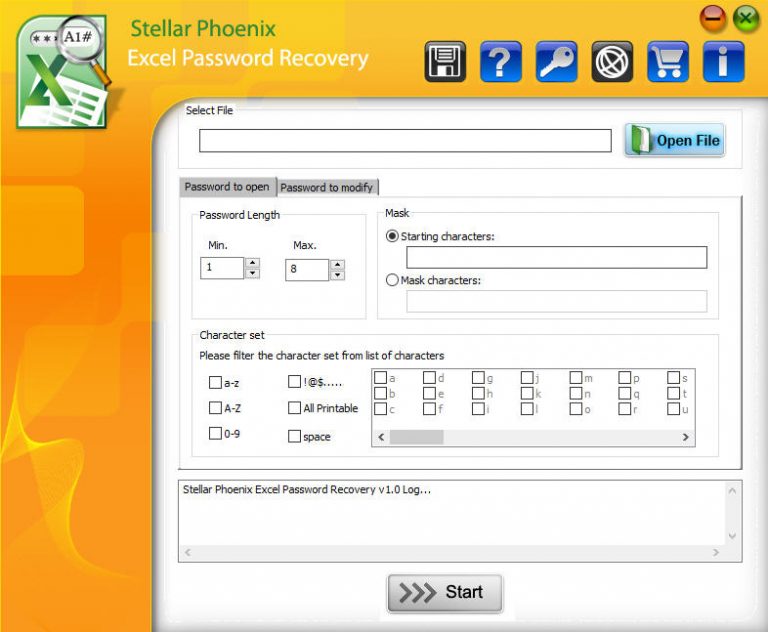
Select the Locked FileClick on the Open File button on the main dashboard. Browse your computer's folders and select the specific encrypted Excel file that you are trying to unlock.
-
Configure and Start RecoveryChoose your recovery type (Password to open or Password to modify). Next, set the password length, mask, and character set. Finally, click Start. A progress window will display the estimated completion time, and your recovered password will be shown at the end!
Pro Tip: By accurately configuring the "length, mask, and character set" options before hitting start, you give the software fewer combinations to guess. This significantly speeds up the brute-force attack and gets your password back much faster!
Frequently Asked Questions
No. According to the official Stellar support team, Stellar Password Recovery for Excel has been permanently discontinued. The tool is no longer actively distributed or supported by the company.
Password to open recovers the password needed just to view the file in read-only mode (you cannot make changes). Password to modify recovers the password that grants both read and write access, allowing you to view, edit, and save changes to the spreadsheet.
The software utilizes an advanced brute-force attack technique. This means it systematically guesses every possible combination of characters based on the parameters (length, characters, and masks) you define until it successfully matches the exact encryption password of your Excel file.
If your file is refusing to open, displaying gibberish, or throwing error messages, it is likely that the file is corrupted or damaged, rather than just password-protected. In this scenario, password recovery tools will not help. You will need to use a specialized repair tool like Stellar Repair for Excel instead.
Technical Specifications
- Publisher: Stellarinfo.com
- License: Demo
- Operating System: Windows 7, Windows 8, Windows 10, Windows 11
- Category: System Utilities / File Management
Stellar Phoenix Excel Password Recovery Screenshot