Ventoy - Open Source PC USB Boot Utility
4.27/5 (28 Reviews)
Ventoy is an open source tool to create bootable USB drives for ISO WIM IMG VHD(x) and EFI files.
System Utilities
System Optimization
Open Source
FREE DOWNLOAD (v1.0.97)
File Size: 15.9MB | Safe & Verified
Key Features of Ventoy
- Ventoy is a premier open source utility designed for high performance bootable media creation and advanced USB management.
- It provides users with a remarkably robust environment to prepare flash drives without needing to format the disk repeatedly with absolute precision.
- The software features an integrated boot menu that automatically detects copied ISO files allowing for seamless installation of multiple operating systems from a single drive.
- In 2026 it remains a vital tool for IT technicians needing a safe and verified environment for system diagnostics across diverse hardware configurations.
How to create a multi-boot USB drive with Ventoy
Ventoy is a game-changing tool for creating bootable media. Instead of flashing a drive for every single operating system, you set it up once and just copy files over. Follow these steps to build your ultimate rescue drive:
-
Install Ventoy to Your USB DriveDownload the Ventoy zip file and extract it. Plug in your USB drive, run the Ventoy2Disk application, select your USB flash drive from the dropdown, and click Install. Warning: This initial step will wipe all data currently on the USB drive!
-
Drag and Drop Your ISO FilesOnce installation is complete, your USB drive will show up in your File Explorer as an empty drive named "Ventoy" (formatted as exFAT). Simply copy and paste your .iso, .wim, or .img files directly onto this drive just like you would with normal files.
-
Boot from the USB DriveRestart your computer and enter your BIOS/UEFI settings (usually by pressing F2, F12, or DEL). Change your boot order to boot from the USB drive first. Save and exit.
-
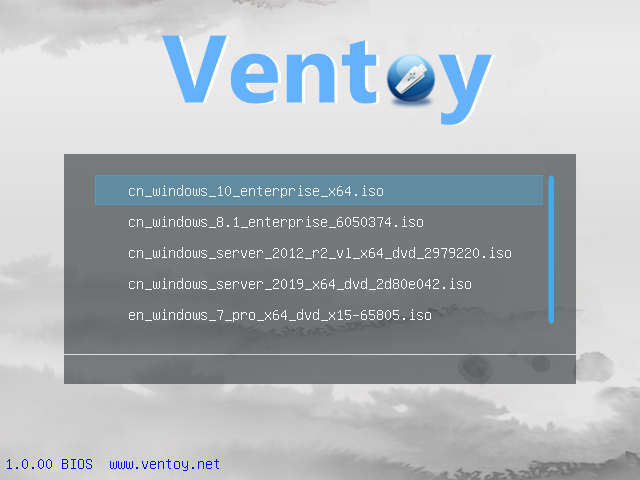
Select Your Operating SystemInstead of immediately booting into a single OS, the Ventoy menu will appear on your screen, listing every ISO file you placed on the drive. Use your arrow keys to select the one you want to run, press Enter, and begin your installation or live session!
Pro Tip: You can keep your USB drive organized by creating folders (e.g., "Windows," "Linux," "Antivirus") and dropping your ISOs into them. Ventoy will recursively scan the drive and list all the bootable files it finds in the menu! You can also still use the drive to store normal files like photos and documents without breaking the boot functionality.
Frequently Asked Questions
No, never again. That is the magic of Ventoy. If a new version of Ubuntu or Windows is released, you simply delete the old ISO file from the flash drive and copy the new ISO file over. No re-flashing or formatting is required!
This happens because your computer has Secure Boot enabled, and it doesn't immediately recognize Ventoy's custom bootloader. When this screen appears, Ventoy provides an on-screen prompt to "Enroll Key from disk." Follow the prompts to select the
ENROLL_THIS_KEY_IN_MOKMANAGER.cer file. Once enrolled, it will boot normally. Alternatively, you can temporarily disable Secure Boot in your BIOS.
Absolutely. When Ventoy formats your drive, it creates a tiny, hidden partition for its boot files, leaving the rest of the drive as a standard exFAT volume. You can mix your ISO files with standard folders, PDFs, MP4s, or Word documents. Ventoy will ignore the regular files and only display the bootable files in its menu.
This usually means one of three things: 1) You haven't copied any valid .iso files to the main partition yet. 2) The files are corrupted (try redownloading the ISO). 3) You accidentally placed the ISOs in the hidden "VTOYEFI" system partition instead of the main user-facing storage partition. Ensure you are copying them to the large drive named "Ventoy."
Technical Specifications
- Publisher: Ventoy.net
- License: Open Source
- Operating System: Windows 7, Windows 8, Windows 10, Windows 11
- Category: System Utilities / System Optimization
Ventoy Screenshot