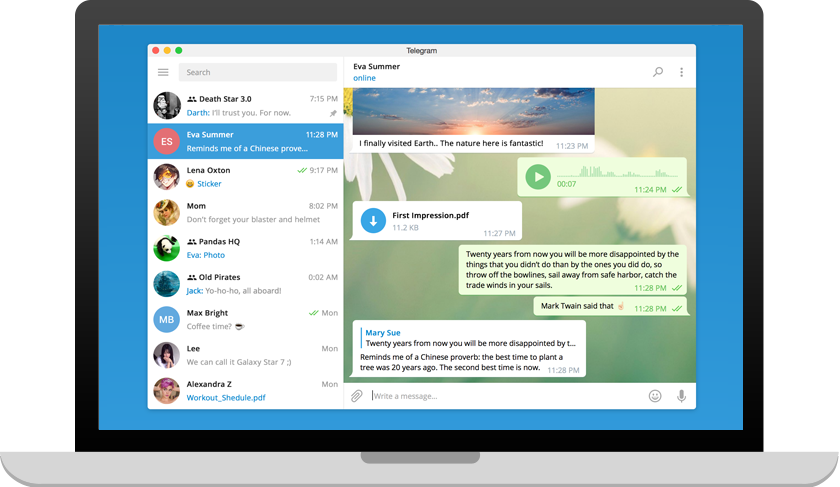
Telegram Desktop Secure Messaging Tool
4.65/5 (14 Reviews)
Telegram Desktop is a fast and secure desktop application perfectly synced with your mobile phone.
Business And Productivity
Office Suite
Freeware
FREE DOWNLOAD (v6.6.2)
File Size: 48.7MB | Safe & Verified
Key Features of Telegram Desktop
- Telegram Desktop is a premier communication utility designed for high performance instant messaging and advanced digital collaboration.
- It provides users with a lightning fast environment to send encrypted text messages voice notes and large multimedia files up to two gigabytes in size.
- The software features robust cloud synchronization ensuring that your entire ICQ-History-Extractor.phtml" title="View software for chat history">chat history is seamlessly accessible across all your devices without relying on your phone connection.
- In 2026 it remains a vital tool for online communities and business teams needing a safe and verified environment for coordinating projects and hosting group chats of up to two hundred thousand members.
- Its open source API and support for custom automated bots make it the globally trusted choice for secure and versatile communication across all modern Windows desktop platforms.
How to set up and use Telegram Desktop
Telegram Desktop brings incredibly fast, secure, and cloud-based messaging right to your PC or Mac. Whether you want to type faster on a real keyboard or share large files effortlessly, follow these steps to get started:
-
Download and Install the AppVisit desktop.telegram.org to download the official installer for Windows, macOS, or Linux. Run the setup file and follow the standard installation prompts for your operating system.
-
Link Your Mobile AccountLaunch Telegram Desktop. A QR code will appear on your screen. Open the Telegram app on your phone, go to Settings > Devices > Link Desktop Device, and point your phone's camera at your computer screen to instantly log in.
-
Send Messages and MediaSelect any contact or group from the left sidebar to start chatting. You can click the paperclip icon next to the text box to send photos, videos, or documents of up to 2GB each without losing quality.
-
Make Voice and Video CallsOpen a chat with a contact and click the Phone or Camera icon in the top right corner to initiate a high-quality voice or video call directly from your computer.
Pro Tip: Unlike some other messaging apps, Telegram is fully cloud-based. This means you can start typing a message on your phone, and it will instantly appear as a "Draft" on your Telegram Desktop!
Frequently Asked Questions
No. Telegram is a standalone cloud-based messenger. Once you log in on your computer, your phone does not need to be turned on or connected to the internet for Telegram Desktop to send and receive messages.
If the app says "Connecting..." indefinitely, it is likely being blocked by a network firewall or your ISP. You can fix this by going to Settings > Advanced > Connection type and setting up a custom proxy, or by using a trusted VPN on your computer.
No. Secret Chats, which use device-to-device end-to-end encryption, are currently only available on the mobile versions of Telegram (iOS and Android). Telegram Desktop uses highly secure client-server encryption (MTProto) for all regular cloud chats.
Yes. You can add up to three different accounts with different phone numbers to your Telegram Desktop app. Just click the hamburger menu (three lines) in the top left, click the drop-down arrow next to your name, and select Add Account.
Technical Specifications
- Publisher: Desktop.telegram.org
- License: Freeware
- Operating System: Windows 7, Windows 8, Windows 10, Windows 11
- Category: Business And Productivity / Office Suite
Telegram Desktop Screenshot