Shotcut Professional Secure Multimedia Editing Utility
4.72/5 (27 Reviews)
Shotcut is a free open source cross platform video editor that supports hundreds of audio and video formats.
Multimedia And Design
Video And DVD
Open Source
FREE DOWNLOAD (v26.02.26)
File Size: 113MB | Safe & Verified
Key Features of Shotcut Video Editor
- Shotcut Video Editor is a premier open source utility designed for high performance non linear video editing and advanced multimedia production.
- It features a sophisticated multi track timeline that allows for native editing of various resolutions and frame rates within a single project.
- The software utilizes the FFmpeg framework to provide comprehensive support for hundreds of audio and video codecs including H.264, HEVC, and ProRes without requiring external plugins.
- In 2026, it remains a vital tool for content creators and filmmakers needing a safe and verified environment for professional grade color grading and audio mixing.
- Its robust set of video filters and keyframe animation tools ensure high fidelity visual effects and seamless transitions across all modern desktop platforms.
- Shotcut is the globally trusted choice for independent creators looking for feature rich video editing without subscription fees.
How to edit videos for free using Shotcut
Shotcut is a free, open-source, cross-platform video editor. It allows you to combine clips, add professional filters, and export high-quality videos without any watermarks or hidden paywalls. Follow these steps to create your first video:
-
Start a New ProjectLaunch Shotcut and look at the "New Project" box in the center of the screen. Give your project a name, choose a dedicated folder to save your work, and set your Video Mode (e.g., 1080p at 60fps) before clicking Start.
-
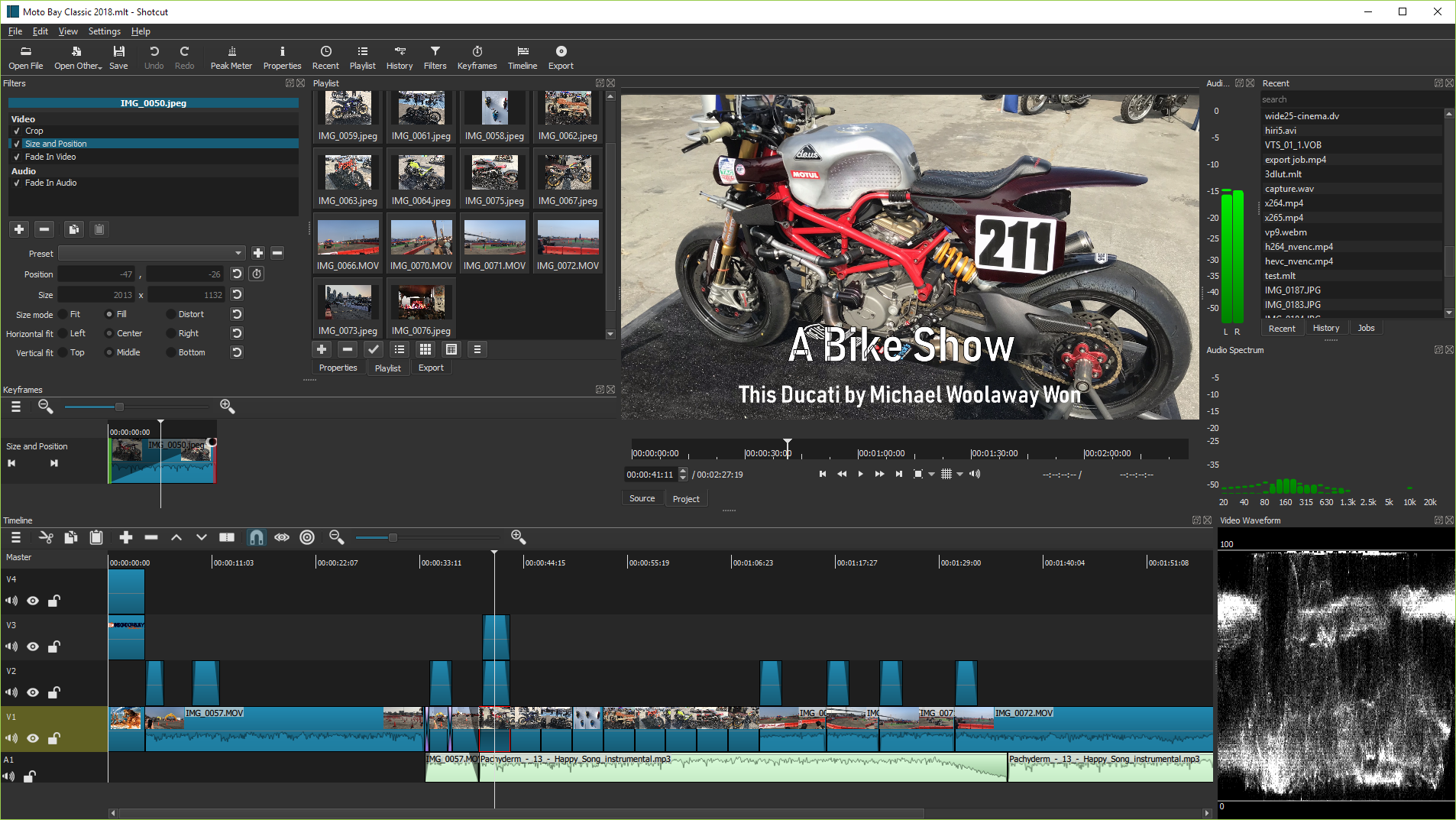
Import Your Media FilesClick the Open File button in the top menu to select your raw video clips, images, and audio files. Once a file opens in the preview player, drag it over to the Playlist panel on the left to keep your assets organized.
-
Edit on the TimelineDrag clips from your Playlist down into the Timeline at the bottom of the screen. You can reorder clips by dragging them, trim the ends by pulling the edges, or cut a clip into two pieces by moving the white playhead line and pressing the Split At Playhead button.
-
Apply Filters and TransitionsSelect a clip on your timeline, then click the Filters tab at the top. Click the "+" icon to add effects like brightness adjustments, text overlays, or audio fades. To add a transition, simply drag one timeline clip slightly over the edge of the adjacent clip to create an automatic crossfade.
-
Export Your Final VideoWhen your edit is complete, click Export in the top menu. Select the YouTube preset from the list on the left (which is perfect for standard MP4 web delivery), and click Export File to render your finished project.
Pro Tip: Speed up your workflow by memorizing a few keyboard shortcuts! Press S to quickly split a clip at the playhead, and use X to delete a selected clip and automatically ripple-delete (close the gap) the empty space left behind.
Frequently Asked Questions
No, absolutely not. Shotcut is entirely free and open-source software. There are no trial periods, premium tiers, hidden fees, or watermarks added to your final projects.
Your computer is likely struggling to process high-resolution files (like 4K) in real-time. To fix this without buying a new PC, go to Settings > Proxy and select Use Proxy. Shotcut will create lower-quality temporary copies of your clips for smooth editing, but will still use your original high-quality files when you export.
By default, navigating to the Export menu and selecting the YouTube or H.264 Main Profile preset under the "Stock" category will automatically export your project as a highly compatible MP4 file. Just click "Export File" and choose where to save it.
This is often caused by hardware encoder issues or missing files. First, ensure you haven't moved or deleted any source video files from your hard drive while the project was open. If all files are present, go to the Export menu, click the Advanced tab, and uncheck Use hardware encoder. Trying exporting again using only software encoding.
Technical Specifications
- Publisher: Shotcut.org
- License: Open Source
- Operating System: Windows 7, Windows 8, Windows 10, Windows 11
- Category: Multimedia And Design / Video And DVD
Shotcut Video Editor Screenshot