Jellyfin - Reliable Media Server Utility
4.67/5 (25 Reviews)
Jellyfin is a Free Software Media System that puts you in control of managing and streaming your media.
Multimedia And Design
Video And DVD
Open Source
FREE DOWNLOAD (v10.8.13)
File Size: 95.4MB | Safe & Verified
Key Features of Jellyfin
- Jellyfin is a premier open source utility designed for high performance home media hosting and advanced content streaming.
- It provides users with a remarkably robust environment to organize local movies TV shows and music without premium subscriptions or digital tracking with absolute precision.
- In 2026 it remains a vital tool for cord cutters needing a safe and verified environment for seamless media playback across smart TVs and mobile devices.
How to build your own private streaming server with Jellyfin
Jellyfin is a 100% free, open-source media system that puts you in control of your digital library. Follow these steps to set up your server and start streaming to any device in your home:
-
Install the Server SoftwareDownload the Jellyfin Server for your primary computer, NAS, or Docker environment. Install it and keep it running in the background—this machine will act as the "brain" hosting your movie, TV, and music files.
-
Set Up Your Media LibrariesOpen the Jellyfin Web UI (usually by navigating to
localhost:8096in your browser) and run the initial setup wizard. Go to Dashboard > Libraries, click Add Media Library, and point Jellyfin to the exact folders on your hard drive where your media is stored. -
Let Jellyfin Fetch MetadataOnce your folders are added, Jellyfin will automatically scan your files and download beautiful posters, episode descriptions, and cast lists from online databases. To get the best results, ensure your files are named cleanly (e.g., "Movie Name (Year).mp4").
-
Stream on Your Client DevicesNow it's time to watch! Download the free Jellyfin app on your Smart TV, smartphone, or gaming console. Open the app, enter your server's IP address and port (e.g.,
192.168.1.50:8096), log in, and press play.
Pro Tip: If you notice videos buffering heavily, navigate to Dashboard > Playback and enable Hardware Acceleration. This allows Jellyfin to use your computer's GPU (like Intel QuickSync or Nvidia NVENC) to smoothly convert video formats on the fly!
Frequently Asked Questions
Yes, absolutely. Jellyfin is built by volunteers and has no premium tiers, no lifetime passes, and no hidden features locked behind a paywall. Everything from hardware transcoding to offline downloads on mobile apps is available to you at no cost.
This generally means your viewing device (like an older TV) doesn't support the video file's format, forcing your server to convert ("transcode") it live. If your server CPU isn't powerful enough, it will buffer or fail. Enabling Hardware Acceleration in the Playback settings usually resolves this.
Yes, but it requires manual setup. Because Jellyfin prioritizes your privacy, it does not route your traffic through external servers. To access your media remotely, you will need to set up Port Forwarding (port 8096) on your home router, or for better security, configure a reverse proxy (like Nginx, Caddy, or Traefik) and a dynamic DNS.
If Jellyfin's automatic scraper grabs the wrong movie, click the three-dot menu icon on the media item and select Identify. You can type in the exact IMDB or TMDB ID number to force Jellyfin to pull the correct posters and text directly from the online database.
Technical Specifications
- Publisher: Jellyfin.org
- License: Open Source
- Operating System: Windows 7, Windows 8, Windows 10, Windows 11
- Category: Multimedia And Design / Video And DVD
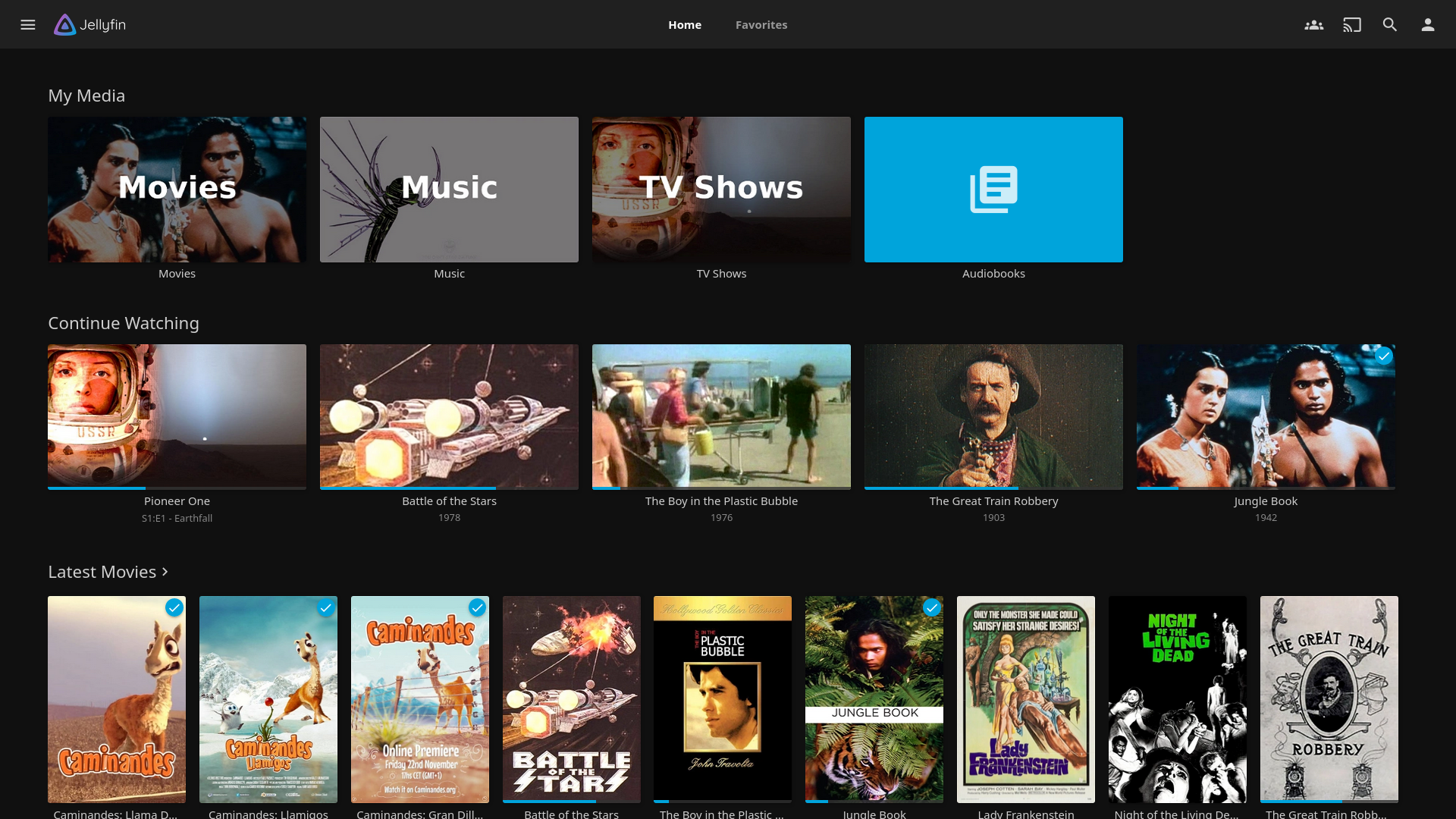
Jellyfin Screenshot