Espanso - High Speed Typing File Manager
4.87/5 (16 Reviews)
Espanso is a free and open source text expander written in Rust for privacy and speed.
Business And Productivity
Office Suite
Open Source
FREE DOWNLOAD (v2.2.1)
File Size: 35.1MB | Official Download
Key Features of Espanso
- Espanso is a premier open source utility designed for high performance text expansion and advanced workflow management.
- It provides users with a remarkably robust environment to create system wide snippets for frequently used phrases or code blocks with absolute precision.
- The software features an integrated Rust based engine that handles shell script triggers and dynamic forms allowing for seamless automation of repetitive typing tasks.
- In 2026 it remains a vital tool for developers and writers needing a safe and verified environment for rapid document creation across diverse hardware configurations.
- Its support for YAML configuration and a highly privacy focused execution ensures that every automation task is handled with incredible speed and professional grade accuracy.
- Espanso is the globally trusted choice for powerful and reliable text expansion across all modern desktop platforms.
How to eliminate repetitive typing with Espanso
Espanso is an open-source, cross-platform text expander. It solves the frustrating problem of typing the same emails, code snippets, or greetings over and over again by replacing short trigger words with large blocks of text system-wide. Follow these steps to get started:
-
Install and Run in the BackgroundDownload and install Espanso for your OS (Windows, macOS, or Linux). Once launched, it runs silently in the background as a system service.
-
Test a Default TriggerOpen any text editor, browser, or messaging app and type
:espanso. The software will instantly backspace those characters and replace them with "Hi there!". You can also type:dateto insert today's date. -
Edit Your Configuration FileEspanso uses simple text files for configuration. Open your terminal or command prompt and type
espanso edit. This will open yourmatch.ymlfile in your default text editor where you can define your own custom triggers and replacement text. -
Save and Auto-ReloadWhenever you save changes to your
match.ymlfile, Espanso automatically detects the update and reloads your snippets. There is no need to manually restart the application.
Pro Tip: Forgot the trigger word for a snippet you created? Press Alt + Space (Windows/Linux) or Option + Space (macOS) to open the Espanso Search bar. You can search through all your active snippets and insert them with the Enter key!
Frequently Asked Questions
No. Espanso embraces a "configuration-as-code" approach. Instead of a clunky UI, it uses simple YAML files. While this requires a text editor, it makes backing up, sharing, and version-controlling (via Git) your snippets incredibly easy for power users and developers.
Because Espanso monitors your keystrokes to detect trigger words, macOS security features block it by default. You must go to your Mac's System Settings > Privacy & Security and grant Espanso explicit permissions for both Accessibility and Input Monitoring.
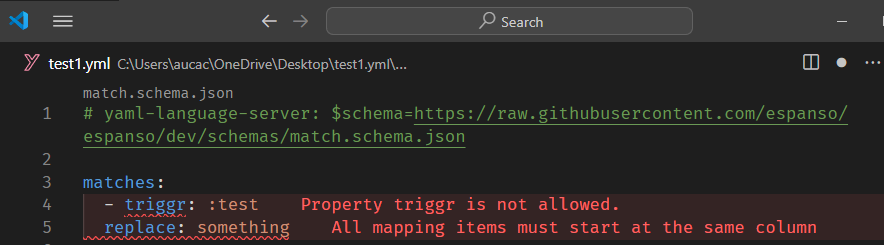
This is almost always a YAML formatting error. YAML is extremely strict about indentation. Ensure you are using spaces (usually two spaces per level) and never use tabs. You can run the
espanso log command in your terminal; it will explicitly tell you if there is a parsing error on a specific line in your config file.
Yes! Unlike browser extensions that only work in Chrome or Firefox, Espanso operates at the operating system level. This means your snippets will work flawlessly in your web browser, Microsoft Word, Slack, Discord, VS Code, and even your terminal window.
Technical Specifications
- Publisher: Espanso.org
- License: Open Source
- Operating System: Windows 7, Windows 8, Windows 10, Windows 11
- Category: Business And Productivity / Office Suite
Espanso Screenshot