EarTrumpet - 2026 Edition Sound Utility
4.59/5 (17 Reviews)
EarTrumpet is a powerful volume control app for Windows that lets you manage per application audio levels easily.
System Utilities
System Optimization
Open Source
FREE DOWNLOAD (v2.3.0)
File Size: 5.1MB | Safe & Verified
Key Features of EarTrumpet
- EarTrumpet is a premier open source utility designed for high performance volume management and advanced system audio control.
- It provides users with a remarkably robust environment to replace the default Windows sound tray allowing independent adjustment of audio levels for browsers games and communication apps with absolute precision.
- Its support for modern hotkeys ensures that every auditory experience is handled with incredible speed and professional grade customization.
How to master per-app audio with EarTrumpet
EarTrumpet is a powerful volume control app that replaces the default Windows audio mixer. It lets you adjust the volume of individual applications on the fly. Follow these steps to take complete control of your system's sound:
-
Install from the Microsoft StoreNavigate to the official Microsoft Store and download EarTrumpet for free. Once installed, launch the application. You will instantly see a new volume icon appear in your system tray at the bottom right of your screen.
-
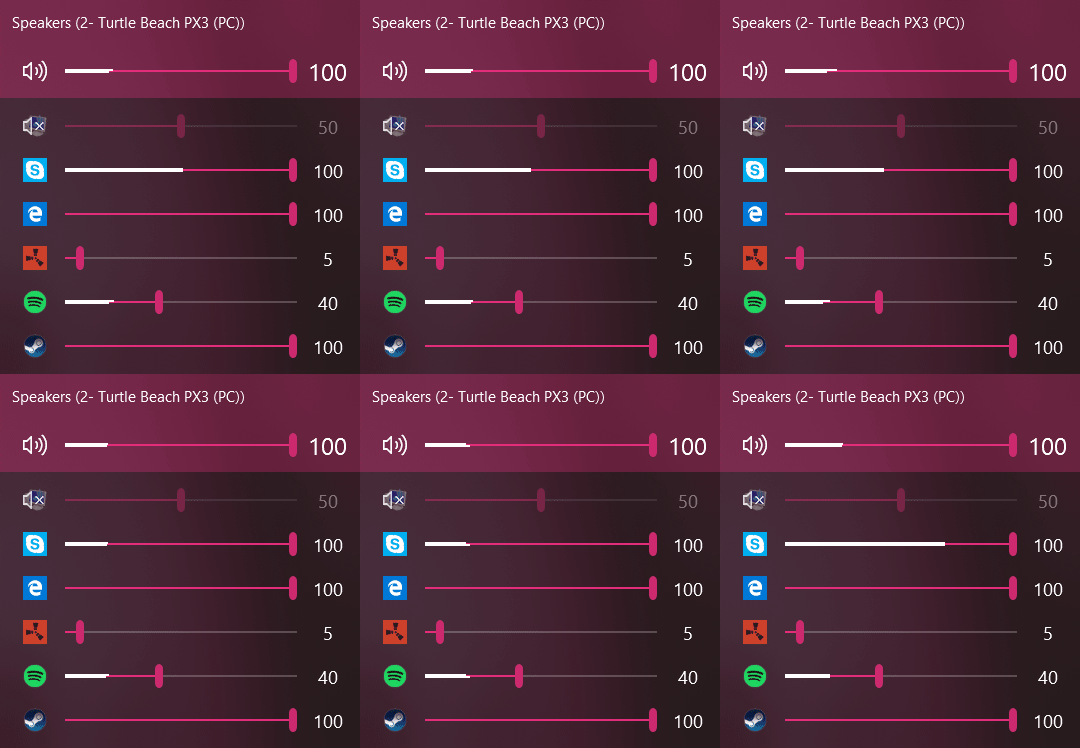
Adjust Individual App VolumesLeft-click the new EarTrumpet icon. Instead of a single master slider, you will see a beautifully integrated flyout menu displaying a separate volume slider for every single app currently playing audio (e.g., Spotify, Chrome, Discord). Slide them independently to create your perfect mix.
-
Route Audio to Different DevicesIf you have multiple audio outputs (like desktop speakers and a USB headset), right-click an application's icon inside the EarTrumpet menu and select the double-arrow icon. From there, you can force that specific app to play through a different audio device without changing your system's default output.
-
Hide the Default Windows IconTo prevent confusion, hide the original Windows volume icon. Simply click and drag the old speaker icon from your taskbar upward into the hidden icons menu (the little arrow chevron on your taskbar). Now, only EarTrumpet will be visible!
Pro Tip: You can assign custom keyboard shortcuts in EarTrumpet's settings. Right-click the tray icon, go to Settings, and set up hotkeys to instantly open the mixer or mute specific apps while gaming or working!
Frequently Asked Questions
Yes. EarTrumpet is 100% free and open-source. There are no premium versions, ads, or hidden subscriptions. You can download the full version directly from the Microsoft Store or GitHub.
Installing EarTrumpet adds its own icon, but Windows does not automatically remove the default one. To fix this, click and hold the default Windows volume icon, drag it into the "hidden icons" arrow menu on your taskbar, and let go.
Yes. EarTrumpet is fully compatible with both Windows 10 and Windows 11. It is designed with modern APIs so it perfectly matches the rounded aesthetics, acrylic blur effects, and dark mode of modern Windows operating systems.
No. EarTrumpet is incredibly lightweight. It runs quietly in the background, consuming minimal RAM and virtually zero CPU power, making it perfectly safe to leave running on gaming rigs and battery-powered laptops alike.
Technical Specifications
- Publisher: Eartrumpet.app
- License: Open Source
- Operating System: Windows 7, Windows 8, Windows 10, Windows 11
- Category: System Utilities / System Optimization
EarTrumpet Screenshot