CrystalDiskInfo - High Speed HDD SSD Health Monitor
4.28/5 (22 Reviews)
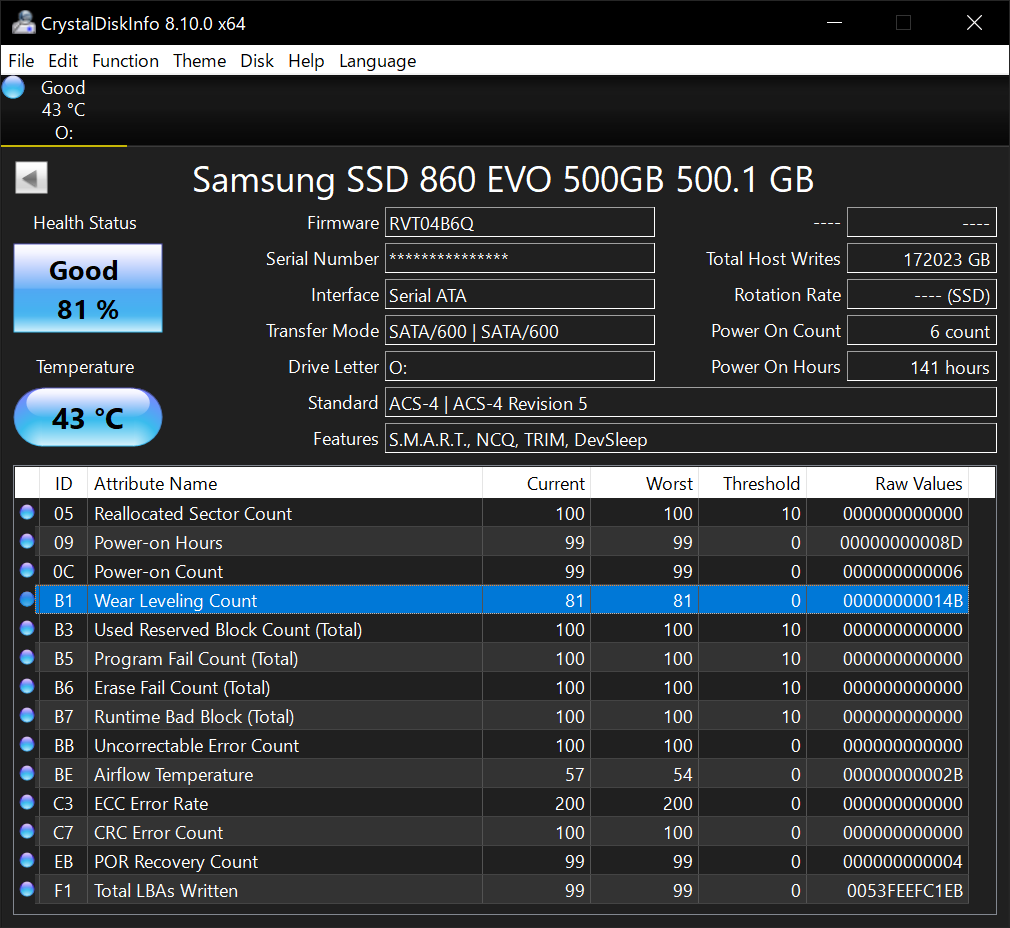
CrystalDiskInfo is a free utility software that monitors the health and temperature of your hard drives.
System Utilities
System Optimization
Freeware
FREE DOWNLOAD (v9.8.0)
File Size: 5.76MB | Safe & Verified
Key Features of CrystalDiskInfo
- CrystalDiskInfo is a premier freeware utility designed for high performance storage monitoring and advanced disk health management.
- It provides users with a remarkably robust environment to track SMART attributes and real time temperatures for HDD and SSD devices with absolute precision.
- The software features an integrated alert system that notifies users of potential drive failures before data loss occurs allowing for proactive maintenance of critical system hardware.
- In 2026 it remains a vital tool for PC enthusiasts and IT professionals needing a safe and verified environment to diagnose storage bottlenecks and monitor NVMe performance across diverse hardware configurations.
- Its support for detailed disk information and firmware reports ensures that every storage device is handled with incredible speed and professional grade accuracy.
- CrystalDiskInfo is the globally trusted choice for powerful and reliable disk diagnostics across all modern Windows desktop platforms.
How to test your SSD and HDD speed using CrystalDiskMark
CrystalDiskMark is the industry standard for benchmarking storage drives. Whether you are verifying the speed of a newly purchased NVMe SSD or diagnosing a sluggish hard drive, follow these steps to run an accurate performance test:
-
Download and Launch the SoftwareVisit CrystalMark.info and download the CrystalDiskMark installer (or the portable ZIP version). Run the application. You will be greeted by a simple interface with rows of empty data blocks.
-
Select Your Target DriveIn the top right corner of the window, locate the dropdown menu. Select the specific drive letter (e.g., C:, D:) that you want to test. Make sure the drive has at least 15-20% free space for the tool to write its temporary test files.
-
Configure Your Test SettingsBelow the menu bar, you will see dropdowns for the number of test runs (default is 5) and the test file size (default is 1GiB). For most users, the default settings are perfect for getting an accurate, average reading.
-
Run the BenchmarkClick the green All button in the top left corner. The software will run a series of sequential and random read/write tests. The process takes a few minutes; wait until all the numbers populate in the Megabytes per second (MB/s) columns.
Pro Tip: For the most accurate results, close all other background applications, browsers, and active downloads before hitting the "All" button. Background disk usage will skew your final benchmark numbers!
Frequently Asked Questions
They serve two completely different purposes. CrystalDiskMark is a benchmarking tool used to test the read and write speeds of your drive. CrystalDiskInfo is a diagnostic tool that reads your drive's S.M.A.R.T. data to tell you about its overall health, temperature, and remaining lifespan to help prevent data loss.
Manufacturers usually advertise "up to" speeds under perfect, sequential testing conditions. If your speeds are significantly lower, it could be due to testing the drive that your operating system is currently running on (the C: drive), thermal throttling, plugging an NVMe Gen 4 drive into a Gen 3 motherboard slot, or your drive being near full capacity.
No, you should not run it constantly. Because CrystalDiskMark works by writing and reading massive dummy files to test speed, it uses up your Solid State Drive's limited Total Bytes Written (TBW) lifespan. It is perfectly safe to run occasionally to verify performance, but do not run it daily.
No. The tools hosted on CrystalMark.info (both DiskMark and DiskInfo) are exclusively developed for the Microsoft Windows operating system. Mac users typically use alternatives like AmorphousDiskMark or Blackmagic Disk Speed Test, while Linux users utilize tools like KDiskMark or command-line utilities.
Technical Specifications
- Publisher: Crystalmark.info
- License: Freeware
- Operating System: Windows 7, Windows 8, Windows 10, Windows 11
- Category: System Utilities / System Optimization
CrystalDiskInfo Screenshot