Clipboard History Utility
4.31/5 (354 Reviews)
Have you ever needed text that was in the Clipboard 20 minutes ago, but is now gone? The Clipboard Manager called Clipboard History grands you access to texts you have copied to the Clipboard before, by pressing the usually unused Caps Lock key.
System Utilities
Automation
Freeware
FREE DOWNLOAD (v1.0)
File Size: 1.1MB | Official Download
Key Features of Clipboard History
- Have you ever needed text that was in the Clipboard 20 minutes ago, but is now gone?
- Then the Clipboard History utility is the solution!
- With this Clipboard Manager you can access up to twenty texts you have copied to the Clipboard before, by pressing the usually unused Caps Lock key.
- Alternatively you can right click a Tray Icon or define any other hotkey which will work in every Windows application.
How to upgrade your copy-paste workflow with Clipboard History
Windows only lets you store one piece of copied text at a time. Clipboard History solves this by saving up to 100 recent entries and letting you paste them anywhere. Follow these 4 steps to get started:
-
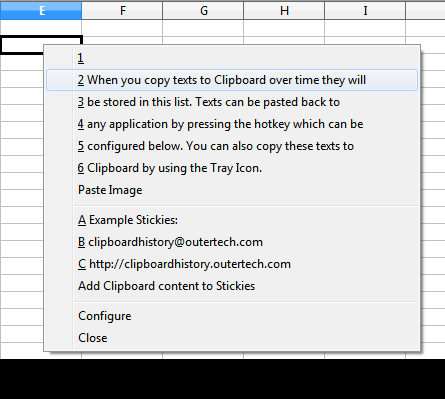
Access Your Paste MenuSimply copy text as you normally would using Ctrl+C. When you need to paste an older item, press the usually idle Caps Lock key (or click the Tray Icon) from within any Windows application. A menu will pop up showing your recent clipboard history.
-
Pin Important Text as "Stickies"For text snippets you use constantly—like your email address, phone number, or canned responses—use the Stickies feature. You can add these permanent text clips directly to your paste menu so they are never overwritten by new copies.
-
Fix Broken Multi-line LinksSometimes copying a long web link from an email results in a broken URL spread across multiple lines. Just copy the whole block of text; Clipboard History automatically fixes multi-line browser links by removing line feeds and white spaces before you paste.
-
Enable Cloud SynchronizationIf you use multiple PCs, you can keep your clipboard history synced across them. In Clipboard History Pro, set up synchronization via Dropbox, Google Drive, or OneDrive. Your synced data can even be safeguarded using AES encryption.
Pro Tip: Not a fan of using the Caps Lock key? You can easily change the trigger to a custom keyboard shortcut (like
Alt + C) in the settings menu in less than a minute.
Frequently Asked Questions
No. By default, Clipboard History is configured to persist across Windows reboots, shutdowns, and logoffs. When you turn your PC back on, your previous clipboard items and Stickies will still be there.
Sometimes, poorly coded software can break the Windows "clipboard monitoring chain," causing clipboard managers to stop capturing new text. Clipboard History includes a built-in Self-Repair feature that automatically detects and fixes this issue without requiring a restart.
Yes, if you are using Clipboard History Pro. The Pro version supports Rich Text Format (RTF) and even includes an HTML to RTF auto-conversion feature, ensuring your text retains its original look when pasted. The Lite version pastes as plain text.
Absolutely. You can apply custom filters to ignore specific text formats or items you don't want to remember, which is highly recommended for keeping passwords or sensitive data out of your permanent archive.
Yes. Clipboard History offers an optional portable installation mode, allowing you to run the program and access your clipboard database directly from a USB flash drive on any compatible Windows PC.
Technical Specifications
- Publisher: Outertech.com
- License: Freeware
- Operating System: Windows 7, Windows 8, Windows 10, Windows 11
- Category: System Utilities / Automation
Clipboard History Screenshot