Everything Professional Secure Desktop Search Utility
4.58/5 (11 Reviews)
Everything is a search engine that locates files and folders by filename instantly for Windows.
System Utilities
File Management
Freeware
FREE DOWNLOAD (v1.4.1.1026)
File Size: 1.7MB | Safe & Verified
Key Features of Everything Desktop Search
- Everything Desktop Search is a premier system utility designed for high performance file indexing and advanced local data retrieval.
- It features a lightning fast search engine that can locate any file or folder by name across massive storage volumes in a matter of seconds.
- The software utilizes a lightweight background service to monitor file system changes in real time, ensuring that the index remains perfectly accurate without impacting system performance.
- In 2026, it remains a vital tool for power users and IT professionals needing a safe and verified environment for managing large datasets and deep directory structures.
- Its robust support for regular expressions and advanced search filters makes it the globally trusted choice for optimizing workflow efficiency and file organization across all modern Windows platforms.
How to find files instantly on Windows using Everything
Everything by voidtools is a lightning-fast desktop search utility for Windows. It completely replaces the slow default Windows search, allowing you to locate files and folders by name in milliseconds. Follow these steps to get started:
-
Install and Grant PermissionsDownload the lightweight setup file from voidtools.com and install it. Upon the first launch, Windows will ask you to grant the app Administrator privileges. Allow this; it is required so the app can securely read your drive's index for instant results.
-
Start Typing to SearchThere is no scanning button to click. Simply open the application and start typing the name of the file or folder you are looking for in the top search bar. The results will populate and narrow down in real-time as you type.
-
Filter Your ResultsIf a simple search brings up too many results, click on Search in the top menu bar. Here, you can select categories like Audio, Video, Document, or Picture to instantly filter the list down to specific file types.
-
Open or Manage Files DirectlyOnce you find your file, double-click it to open it natively. You can also right-click any item in the list to access your standard Windows context menu (Copy, Paste, Open file location, Delete) directly from the Everything interface.
Pro Tip: Go to Tools > Options > Keyboard to set a custom hotkey (like Ctrl+Space). This allows you to summon the Everything search window instantly, no matter what other application you are currently working in!
Frequently Asked Questions
It needs to read the file system index. Everything accesses the NTFS USN Journal on your hard drive to catalog your files instantly. Administrator privileges are required by Windows to read this low-level data. The software only reads this data and does not alter your system files.
Yes, but it is primarily designed for file names. You can search for text inside files using the
content: search operator (e.g., typing content:"Q4 revenue"). However, because document contents are not pre-indexed like filenames are, this type of search will take longer to complete.
Not out of the box, but it can easily be configured. By default, Everything only indexes your local NTFS drives. To search a network drive, go to Tools > Options > Indexes > Folders and click "Add" to manually select your mapped network drive or UNC path.
No, it is exceptionally lightweight. Everything is famous for its minimal resource usage. The initial indexing of a million files takes just a few seconds and uses around 50MB of RAM. Once running, it quietly monitors file changes in the background with practically zero impact on your CPU or battery life.
Technical Specifications
- Publisher: Voidtools.com
- License: Freeware
- Operating System: Windows 7, Windows 8, Windows 10, Windows 11
- Category: System Utilities / File Management
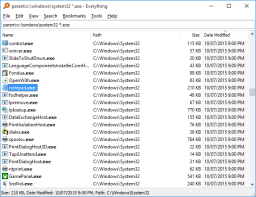
Everything Desktop Search Screenshot