Revo Uninstaller - 2026 Edition Cleaner Utility

4.06/5 (25 Reviews)

Revo Uninstaller helps you to uninstall software and remove unwanted programs installed on your computer easily.

System Utilities System Optimization Freeware
FREE DOWNLOAD (v2.4.5)
File Size: 7.2MB | Safe & Verified

Key Features of Revo Uninstaller Free

  • Revo Uninstaller Free is a premier freeware utility designed for high performance software removal and advanced system optimization.
  • It provides users with a remarkably robust environment to hunt down leftover registry keys and empty folders that traditional uninstallers leave behind with absolute precision.
  • Its support for deep scanning ensures that every system cleanup is handled with incredible speed and accuracy.

How to completely remove stubborn software with Revo Uninstaller

Revo Uninstaller goes beyond the standard Windows tool by scanning for and removing leftover files and registry entries. Follow these steps to perform a clean, deep uninstall:

  1. Launch and Select Your Program
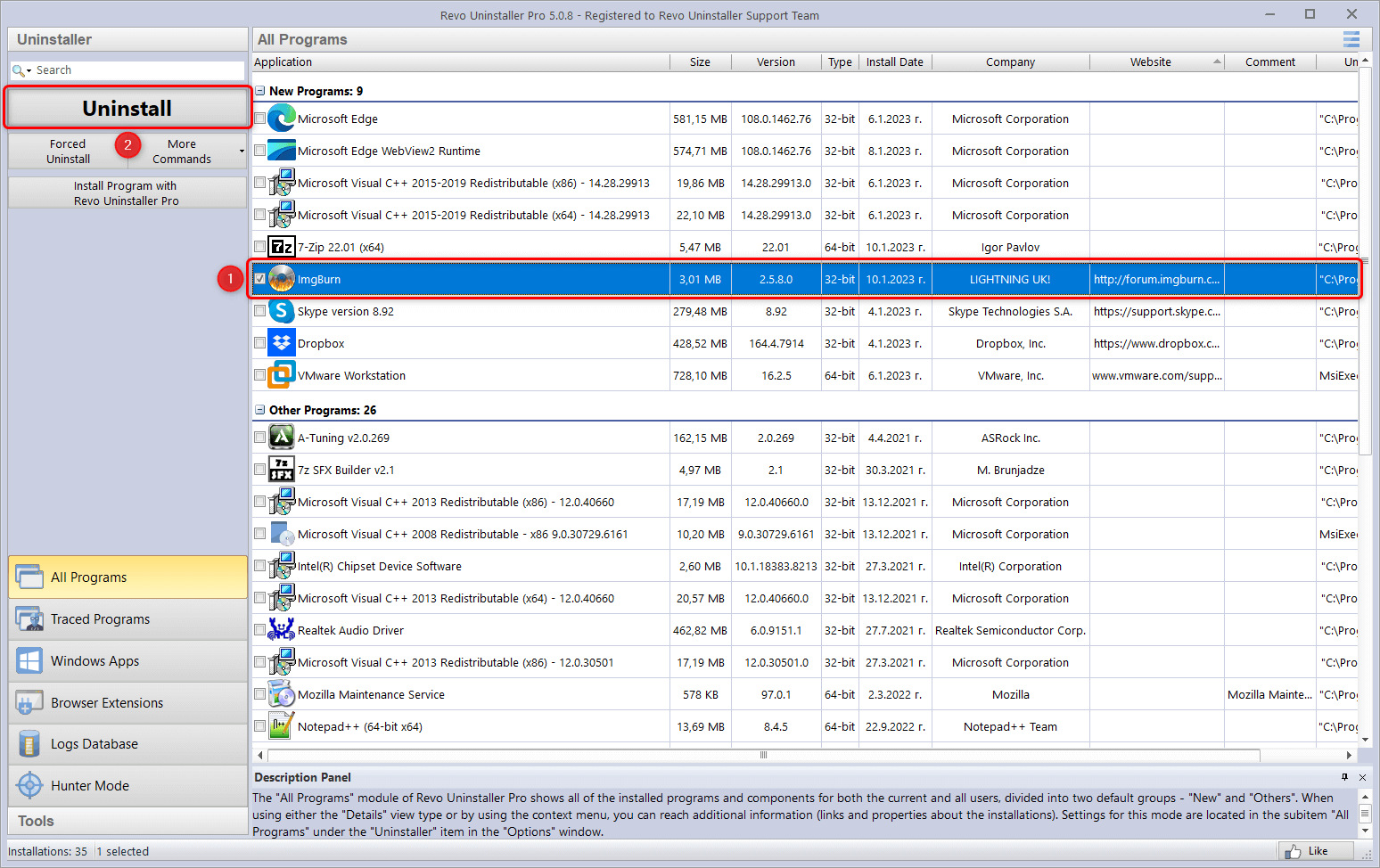
    Open Revo Uninstaller (ensure you run it as Administrator). You will see a grid of all currently installed programs. Locate the application you want to remove, right-click it, and select Uninstall.
  2. Run the Built-in Uninstaller
    Revo will first create a System Restore point to keep your PC safe, and then it will launch the program's default uninstaller. Follow the standard on-screen prompts to uninstall the software normally.
  3. Scan for Leftovers
    Once the standard uninstall finishes, return to the Revo window. Choose your scanning mode—Safe, Moderate, or Advanced (Moderate is recommended for most users)—and click Scan to search your PC for digital remnants.
  4. Select and Delete Junk Files
    Revo will display a tree of leftover Registry items and files. Click Select All, then click Delete. Do this for both the Registry screen and the Files/Folders screen, then click Finish to complete the deep clean!
Pro Tip: Try "Hunter Mode" from the top menu! It turns your cursor into a target crosshair. If you have an annoying pop-up or a mystery desktop shortcut, just drag and drop the crosshair onto it, and Revo will instantly trace it to its source and offer to kill or uninstall it.

Frequently Asked Questions

Yes. Revo Uninstaller is designed with safety in mind. Before it makes any changes, it automatically creates a Windows System Restore point and a full Registry backup. During the leftover scan phase, it uses advanced algorithms to ensure only registry keys definitively linked to the uninstalled app are selected for deletion.

The Free version is excellent for standard uninstalls, scanning for leftovers, and removing Windows apps. The Pro version adds advanced capabilities for power users, including a Real-Time Installation Monitor (which records exactly what a program installs to ensure 100% removal later), Forced Uninstall for completely broken programs, and Batch Uninstalling to remove multiple apps at once.

No. Revo Uninstaller is specifically engineered to interact with the Windows Registry and Windows file systems. It is only compatible with Windows operating systems (Windows 10, 11, and older legacy versions).

Sometimes programs hide themselves or are installed directly through the Microsoft Store. Try clicking the Windows Apps tab at the top of the screen to view default system applications. If you still can't find it, you can use the Hunter Mode to point directly at the app's shortcut, or use the "Forced Uninstall" feature available in the Pro version.

Technical Specifications

Revo Uninstaller Free Screenshot

Screenshot of Download Revo | Latest 2026 Cleaner Free