Paint NET - Premier Photo Application Tool

4.35/5 (12 Reviews)

Paint NET is image and photo editing software for PCs that features support for layers unlimited undo and special effects.

Multimedia And Design Video And DVD Freeware
FREE DOWNLOAD (v5.0.12)
File Size: 64.1MB | Safe & Verified

Key Features of Paint NET

  • Paint NET is a premier freeware utility designed for high performance image editing and advanced graphic manipulation.
  • It provides users with a remarkably robust environment to bridge the gap between simple drawing tools and complex artistic suites offering layers and special effects with absolute precision.
  • Its support for community plugins ensures that every creative project is handled with incredible speed and professional grade quality.

How to edit photos like a pro for free with Paint.NET

Paint.NET is an incredibly intuitive photo editor that bridges the gap between basic tools and professional suites. Follow these steps to master the basics of layering and photo manipulation:

  1. Download and Install
    Visit the official website (getpaint.net) to download the free Windows installer. During installation, the software will automatically detect if you have the required Microsoft .NET Framework and help you install it if it's missing.
  2. Master the Layers Window
    Open an image. The biggest advantage of Paint.NET is the Layers panel (usually in the bottom right). Instead of drawing directly on your photo, click the Add New Layer icon. Now, anything you draw, paste, or type on this new transparent layer can be moved or deleted without ruining the original photo underneath!
  3. Apply Adjustments and Effects
    Need to fix a dark photo? Click Adjustments in the top menu to tweak the Brightness, Contrast, or Hue/Saturation. To get creative, explore the Effects menu to easily add a Gaussian Blur, sharpen edges, or turn your photo into an oil painting.
  4. Save in the Correct Format
    When you are done, go to File > Save As. If you want to keep your layers separated so you can edit them again tomorrow, save the file in the default .pdn (Paint.NET) format. If you want to post the final image online, save a copy as a .png or .jpg (this will permanently "flatten" the layers together).
Pro Tip: Paint.NET has a massive community of creators who build free Plugins! You can download plugin packs from the official forums and drop the .dll files into your Paint.NET "Effects" folder to unlock hundreds of brand-new tools, like drop shadows, advanced gradients, and object alignment.

Frequently Asked Questions

Yes. The classic desktop version downloaded directly from the official website is 100% free and fully functional. There is an optional paid version available on the Microsoft Store, but it exists solely for users who want to financially support the developer and enjoy automatic background updates.

No. Paint.NET is specifically engineered to run on the Microsoft Windows operating system using the .NET framework. It is not compatible with macOS, Linux, or ChromeOS. If you are on a Mac or Linux machine, you might want to look into an open-source alternative called Pinta, which was heavily inspired by Paint.NET.

It's incredibly easy! Select the Magic Wand tool from your left-hand toolbar. Click on the solid background you want to remove (you can adjust the "Tolerance" slider at the top of the screen if it grabs too much or too little of the image). Once the background is highlighted, simply press the Delete key on your keyboard. The background will turn into a checkerboard pattern, which indicates transparency.

Standard image formats like JPEG, PNG, and GIF do not support layers. When you save your project as one of these file types, Paint.NET is forced to "flatten" the image into a single, uneditable layer. To preserve your layers for future editing, always save a master copy of your work in the .pdn format first.

Technical Specifications

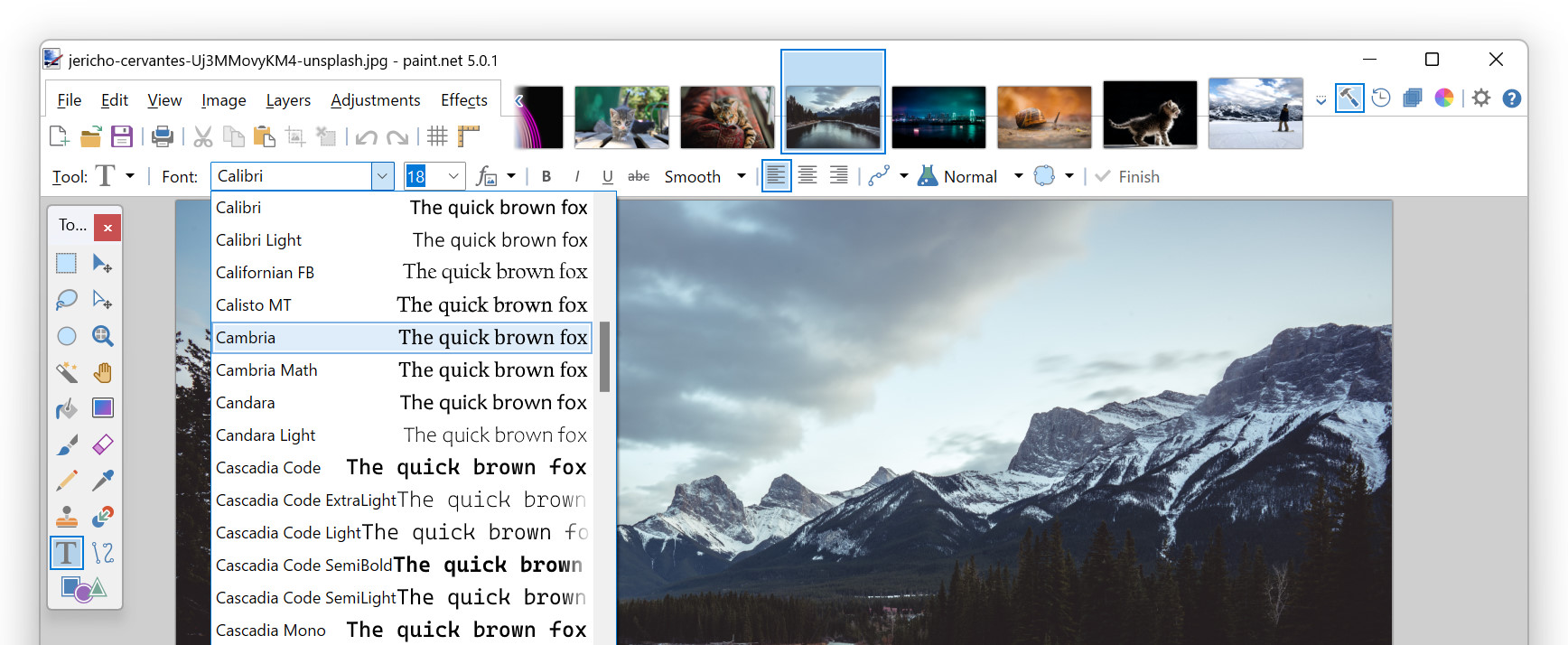
Paint NET Screenshot

Screenshot of Top Rated Editor | Download Paint NET Free