VirtualBox Professional Secure Virtual Machine Utility
4.17/5 (17 Reviews)
VirtualBox is a powerful open source virtualization product for enterprise as well as home use.
System Utilities
System Optimization
Open Source
FREE DOWNLOAD (v7.2.6)
File Size: 169.2MB | Safe & Verified
Key Features of Oracle VM VirtualBox
- Oracle VM VirtualBox is a premier open source utility designed for high performance system virtualization and advanced cross platform management.
- It provides IT professionals and developers with a robust environment to run multiple operating systems simultaneously on a single physical machine including various editions of Windows Linux and macOS.
- The software features a highly modular architecture and supports hardware virtualization allowing virtual machines to execute code directly on the host processor for near native performance.
- In 2026 it remains a vital tool for software testing and network simulation needing a safe and verified environment for sandboxing applications without risking the host system.
- Its support for seamless mode and shared folders between host and guest systems ensures that workflows remain completely uninterrupted.
- VirtualBox is the globally trusted choice for powerful and flexible virtual machine deployment across all modern desktop environments.
How to set up your first Virtual Machine with VirtualBox
Oracle VM VirtualBox allows you to run multiple operating systems (like Windows, Linux, or macOS) simultaneously on your current computer without needing to dual-boot. Follow these steps to create your first virtual machine (VM):
-
Download and Install VirtualBoxDownload the appropriate installer for your Host operating system (Windows, macOS, or Linux) from the official website. Run the setup and follow the standard installation prompts.
-
Create a New Virtual MachineClick the New button in the main dashboard. Give your VM a name, select where you want to save it, and choose the Type and Version of the operating system you plan to install (e.g., Linux, Ubuntu 64-bit).
-
Allocate Hardware ResourcesAssign RAM (Memory) and create a Virtual Hard Disk for the new OS. Important: Keep the sliders in the "green zone" so you don't starve your main computer of the resources it needs to keep running smoothly.
-
Mount the ISO and Install the OSSelect your new VM and click Start. VirtualBox will prompt you to select a startup disk. Choose the ISO file (installation media) you downloaded for your target operating system, and follow the standard OS installation process on the screen.
Pro Tip: Once your new operating system is installed and running, immediately install the "VirtualBox Guest Additions" (found in the Devices menu). This unlocks seamless mouse tracking, shared clipboards, and proper full-screen resolutions!
Frequently Asked Questions
This is the most common error for new users. It means Hardware Virtualization is disabled on your computer. You will need to restart your computer, enter your BIOS/UEFI settings, and enable "Intel VT-x" or "AMD-V" depending on your processor.
Yes, temporarily. A virtual machine borrows real hardware resources (RAM, CPU cores, and hard drive speed) from your physical computer. As long as you only allocate what you can spare, your host computer should continue to run fine. When you close the VM, those resources are immediately returned to your main PC.
Yes. By installing the VirtualBox Guest Additions, you can enable "Shared Folders," which act as a network drive both computers can see. You can also enable bi-directional Drag-and-Drop and Shared Clipboard settings from the VirtualBox machine menus.
The base Oracle VM VirtualBox software is free and open-source (released under the GPLv2 license) for both personal and educational use. However, if you download the VirtualBox Extension Pack (which adds support for USB 2.0/3.0, disk encryption, etc.), be aware that it has a different license and may require a paid tier for commercial or enterprise environments.
Technical Specifications
- Publisher: Virtualbox.org
- License: Open Source
- Operating System: Windows 7, Windows 8, Windows 10, Windows 11
- Category: System Utilities / System Optimization
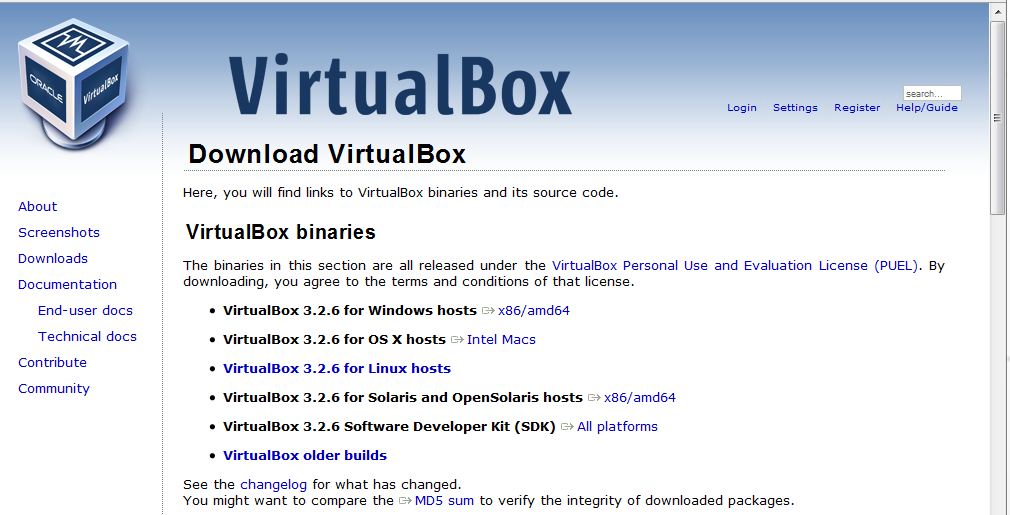
Oracle VM VirtualBox Screenshot